Clock Out Time Calculator
Enter when you started, how long you need to work and your lunch break to see the time you can clock out.
Recent
Your last 10 settings, saved only in this browser. Nothing is uploaded.
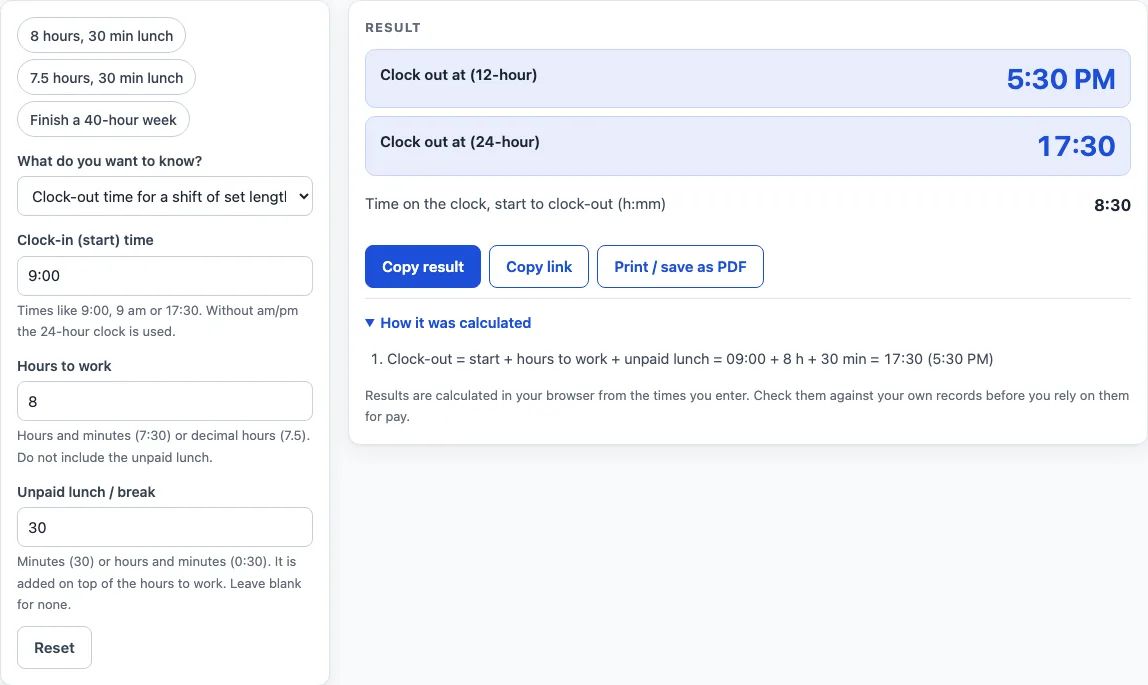
How to use the Clock Out Time Calculator
- Choose a mode. Shift mode finds the clock-out time for a shift of set length. Week mode finds the clock-out time that finishes a weekly hours target.
- In shift mode, type your start time, such as 9:00, 9 am or 17:30. Without am or pm, the 24-hour clock is used.
- Enter the hours to work. The default is 8. You can type 7:30, 7.5 or 7h 30m.
- Enter the unpaid lunch in minutes (30) or as h:mm (0:30). The default is 30.
- In week mode, enter the weekly target hours (default 40), the hours already worked this week before today (default 32:30), and today’s start time. Then set the lunch.
- Read the result. It shows the clock-out time on a 12-hour and a 24-hour clock, plus the time on the clock from start to clock-out. In week mode, it also shows the hours still needed today.
- Open “How it was calculated” under the result to see each step with your values.
Preset buttons above the form load three typical cases: 8 hours from 9:00, 7.5 hours from 8:30, and finishing a 40-hour week. Reset restores the starting example. Copy link stores every input in the page address, so you can reopen the calculation later or send it to someone else. Print / save as PDF produces a one-page record with the inputs, results, steps and date.
What is the formula for a clock-out time?
The clock-out time is the start time plus the hours to work plus the lunch. In short, clock-out = start + hours + lunch, using standard clock arithmetic in which minutes are added and the result wraps around after 24 hours. For example, a 9:00 start with 8 hours and a 30 minute lunch gives 17:30, which is 5:30 PM. The time on the clock is 8:30, made up of the 8 hours plus the 30 minutes of lunch.
Why is lunch added on top of the hours?
Lunch is unpaid time added on top of the hours to work. It moves the clock-out time later, even though it is not part of the hours you work. The calculator adds the lunch you enter and does not decide whether any break must be paid.
How does week mode find today’s hours?
Week mode subtracts the hours already worked from the target: hours still needed today = target − already worked. The clock-out time is then start + hours needed + lunch. With a 40-hour target and 32:30 already worked, 7:30 is still needed. Starting at 9:00 with a 30 minute lunch gives 5:00 PM. If the target has already been reached or passed, no clock-out time is given because no more hours are needed.
How are times and hours read when I type them?
Hours can be typed as 7:30 (h:mm), 7.5 (decimal) or 7h 30m. A bare number in the hours, target and worked boxes is read as hours, while a bare number in the lunch box is read as minutes. Start times can be typed as 9:00, 9 am or 17:30. Without am or pm, the 24-hour clock is used, so 17:30 is 5:30 PM and 9:00 is 9:00 AM.
What happens when the clock-out time falls on the next day?
If the clock-out time passes midnight, the page adds a Day line (“Next day”, or “n days later”) and warns that the time falls on the next day. For example, a 10:00 pm start with 8 hours and a 30 minute lunch gives 06:30 on the next day. This is standard clock arithmetic: 22:00 plus 8 hours and 30 minutes wraps past 24:00 to 06:30.
Worked examples
| Input | Result |
|---|---|
| start 9:00, 8 h to work, 30 min lunch | 5:30 PM (17:30) |
| start 8:30, 7.5 h to work, 30 min lunch | 4:30 PM (16:30) |
| start 9:00, 32:30 h of 40 h done, 30 min lunch | 5:00 PM (17:00) |
| start 3:00 pm, 8 h to work, 45 min lunch | 11:45 PM (23:45) |
Calculated by the tool above; open it with the same values to see each step.
Frequently asked questions
Does the calculator tell me whether my lunch break is paid?
No. Lunch is added as unpaid time, and the page does not decide whether any break must be paid.
Why does my result say “Next day”?
The clock-out time passes midnight, so the page adds a Day line and a warning that the time falls on the next day.
Why doesn’t week mode show a clock-out time?
Your target has already been reached or passed, so no more hours are needed today. When the hours still needed today exceed 16, week mode shows a warning.
Is the weekly target a legal requirement?
No. The weekly target is a number you set. It is not a statement of what any law or employer requires.
Why does shift mode warn me about my hours?
Shift mode warns when the hours to work exceed 16. It rejects zero or negative hours, and week mode rejects a target of zero.
Can I use the results to check my pay?
Results are calculated in your browser from the times you enter. Check them against your own records before you rely on them for pay.
Is the clock out time calculator free, and is anything I type uploaded?
Yes, it is free and needs no account or sign-up. Everything is calculated in your browser, and nothing you type is uploaded.
Can I print or share a calculation?
Yes. Print / save as PDF creates a one-page record with the inputs, results, calculation steps and the date. Copy link copies a page address that stores every input, so the same calculation can be reopened later or sent to someone else.
Related tools
- Time Card Calculator: total a week of clock-in and clock-out times, with breaks, rounding, overtime and pay.
- Work Hours Calculator: hours worked in one shift, then per week, month and year.
- Timesheet Calculator: add up any number of shifts pasted one per line.
- Biweekly Timesheet Calculator: a two-week time card with overtime counted per week.
- Time Clock Calculator: punches before and after lunch for each day of the week.
- Weekly Hours Calculator: total the hours you worked on each day of the week.
- Printable Timesheet: print a blank weekly, biweekly, semi-monthly or monthly timesheet.
- Shift Hours Calculator: end time and paid hours for 8, 10 and 12 hour shifts.
- Time Clock Rounding Calculator: round punches to 5, 6, 10, 15, 30 or 60 minutes and see the effect.