Printable Timesheet
Choose the pay period and the columns you need, add a name and print a blank timesheet with dates already filled in.
Recent
Your last 10 settings, saved only in this browser. Nothing is uploaded.
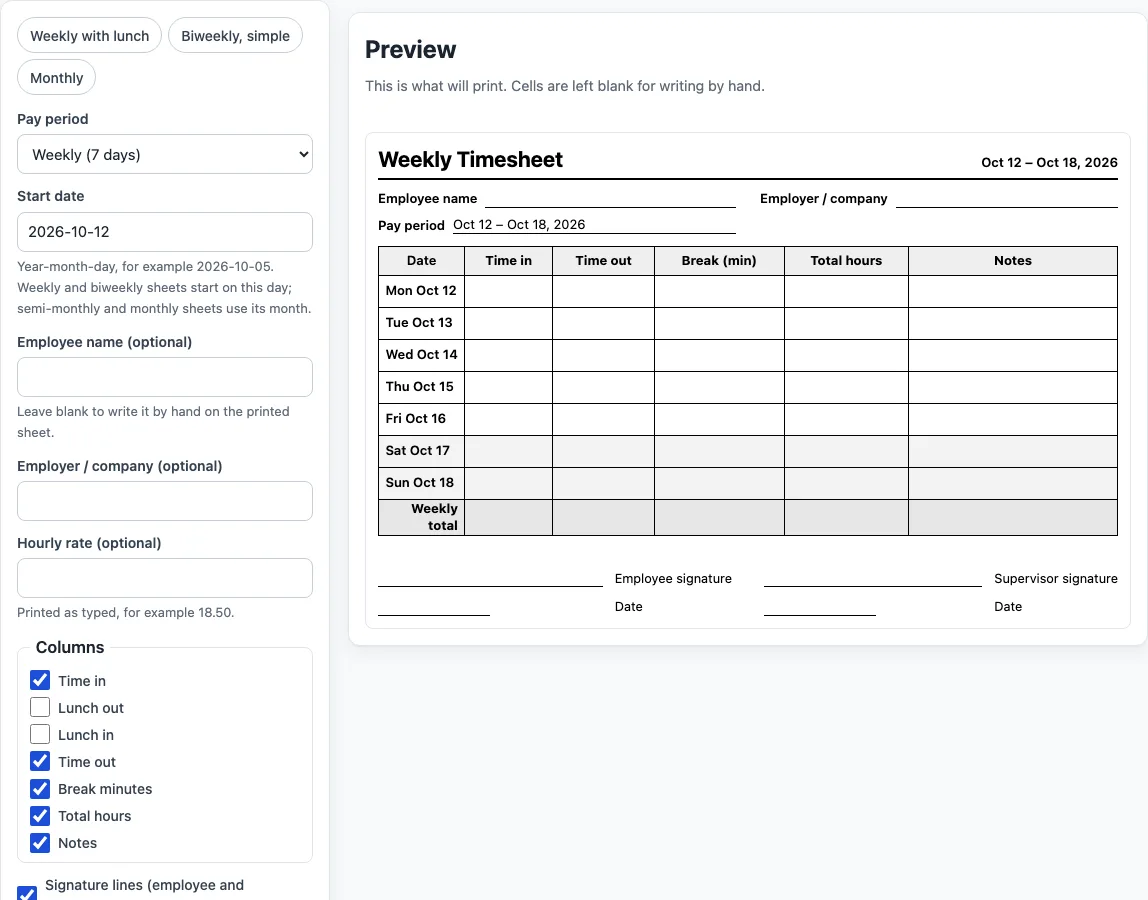
How to use the printable timesheet tool
- Start with a preset if one fits: ‘Weekly with lunch’, ‘Biweekly, simple’ or ‘Monthly’. You can change any setting afterwards.
- Choose the pay period: Weekly (7 days from the start date), Biweekly (14 days), Semi-monthly (the 1st to 15th or the 16th to the end of the month) or Monthly (the whole month).
- Type the start date as year-month-day, for example 2026-10-05. The page opens with the Monday of the current week.
- Check the preview. Each row is one calendar day, labelled like ‘Mon Oct 5’, and weekends are lightly shaded.
- Tick the columns you need: Time in, Lunch out, Lunch in, Time out, Break minutes, Total hours and Notes. The default is Time in, Time out, Break minutes, Total hours and Notes. At least one column must be ticked.
- Fill in the header: Employee name, Employer / company and an hourly rate if you want one. You can leave the name and company blank to write them by hand.
- Choose the options you want: signature lines for the employee and supervisor (on by default), and a weekly overtime summary block.
- Click Print timesheet. Only the sheet prints.
Copy link stores your options in the web address, so the same sheet can be reopened later or sent to someone else. To save a file instead of paper, print and choose Save as PDF.
What is on the printable timesheet?
Each row is one calendar day, labelled like “Mon Oct 5”, with weekends lightly shaded. You choose which columns to print: Time in, Lunch out, Lunch in, Time out, Break minutes, Total hours and Notes. The default is Time in, Time out, Break minutes, Total hours and Notes. The header has the employee name, the employer or company and the pay period, plus an hourly rate if you type one. Leave the name and company blank if you would rather write them by hand.
How do the pay periods work?
A weekly sheet has 7 rows starting from the date you give, and a biweekly sheet has 14. A semi-monthly sheet covers the 1st to the 15th or the 16th to the end of the month, and a monthly sheet covers the whole month; for those two the start date only picks the month and which half of it. Month lengths and leap years are exact, so the second half of February 2028 has 14 rows, the second half of February 2027 has 13, and a monthly sheet for October has 31.
What are the optional extras?
Signature lines for the employee and the supervisor, each with a date line, are on by default. A weekly overtime summary block adds blank lines for regular hours, overtime hours and total hours. When Total hours is switched on, a weekly total row follows every 7 rows, plus a period total on sheets longer than a week.
The sheet is only a form: it contains no pay rules and does not add up your hours. If you want the hours added for you, copy the times into the Time Card Calculator or the Biweekly Timesheet Calculator.
To keep a record, use Print and choose Save as PDF, or copy the link to reopen the same sheet with the same options.
Worked examples
| Input | Result |
|---|---|
| Weekly (7 days), start 2026-10-05 | 7 rows, Oct 5 – Oct 11, 2026 |
| Biweekly (14 days), start 2026-10-05 | 14 rows, Oct 5 – Oct 18, 2026 |
| Monthly (whole month), start 2026-10-01 | 31 rows, Oct 1 – Oct 31, 2026 |
Calculated by the tool above; open it with the same values to see each step.
Frequently asked questions
Does the sheet calculate my hours?
No. The sheet is only a form. It contains no pay rules and does not work out hours from the times you write in. Use the Time Card Calculator if you want the hours worked calculated.
Why does my semi-monthly sheet not change when I change the day?
For semi-monthly and monthly sheets, the start date only selects the month and, for semi-monthly, the half of it. Changing the day to another day in the same half leaves the sheet the same.
What happens if I type an invalid date?
If the start date is not a real date, such as 2026-02-30, the page shows a message instead of a sheet. Correct the date to a real year-month-day and the sheet will appear.
Can I save the timesheet as a file?
Yes. Click Print and choose Save as PDF. This gives you a file you can keep or email, and it has the same layout as the printed sheet.
How do I get a sheet that also shows a weekly overtime summary?
Turn on the weekly overtime summary option. It adds blank lines for regular hours, overtime hours and total hours for each week. You fill in those lines yourself, because the sheet does not calculate them.
Is the printable timesheet free, and is anything I type uploaded?
Yes, it is free and needs no account or sign-up. Everything is calculated in your browser, and nothing you type is uploaded.
Related tools
- Time Card Calculator: total a week of clock-in and clock-out times, with breaks, rounding, overtime and pay.
- Work Hours Calculator: hours worked in one shift, then per week, month and year.
- Timesheet Calculator: add up any number of shifts pasted one per line.
- Biweekly Timesheet Calculator: a two-week time card with overtime counted per week.
- Time Clock Calculator: punches before and after lunch for each day of the week.
- Clock Out Time Calculator: find the time you can clock out.
- Weekly Hours Calculator: total the hours you worked on each day of the week.
- Shift Hours Calculator: end time and paid hours for 8, 10 and 12 hour shifts.
- Time Clock Rounding Calculator: round punches to 5, 6, 10, 15, 30 or 60 minutes and see the effect.